Video tutorial
Video to GIF: Convert a Clip and Keep the GIF Small
Convert video to GIF in your browser and compress the GIF with three settings, with sizes measured on one 5-second clip at every fps and width.

On this page
A video to GIF conversion has one real problem: the GIF comes out too big for wherever it is going. Chat apps reject it, forums cap uploads, support tickets refuse attachments, and a page with a 10 MB GIF loads slowly. This guide converts a clip with the free video to GIF converter, then shows, with sizes measured on one clip, which settings compress the GIF and by how much.
Video to GIF in three steps
- Open the converter and drop in an MP4, WebM or MOV file of up to 200 MB. The video stays on your device: nothing is uploaded, there is no queue, no sign-up and no watermark.
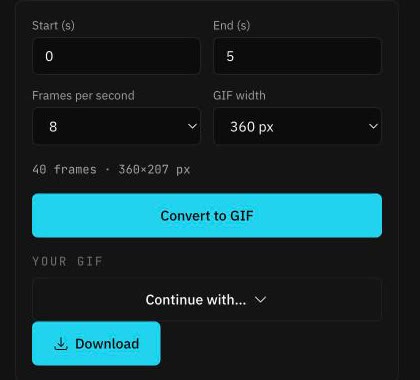
- Set the start and end second, the frames per second and the GIF width. The frame counter under the controls updates as you change them.
- Click Convert to GIF, check the preview and download. The Continue with… menu hands the GIF to the other tools if you want to crop or resize it.
Compress GIF: the three settings that decide the size
A GIF stores every frame as a full picture, so its size is roughly frames × pixels. That gives you three levers: how many seconds you keep, how many frames per second, and how wide the GIF is. The table shows what each lever does to the same 5-second clip, an 864×496 video of a desert train, with the sizes the converter produced.
| Range | fps | Width | Frames | GIF size |
|---|---|---|---|---|
| 0–5 s | 8 | 360 px | 40 | 2.0 MB |
| 0–5 s | 5 | 360 px | 25 | 1.3 MB |
| 0–5 s | 12 | 360 px | 60 | 3.1 MB |
| 0–5 s | 15 | 360 px | 75 | 3.8 MB |
| 0–5 s | 8 | 240 px | 40 | 1.0 MB |
| 0–5 s | 8 | 480 px | 40 | 3.3 MB |
| 0–5 s | 8 | 640 px | 40 | 5.1 MB |
| 0–5 s | 15 | 640 px | 75 | 9.6 MB |
| 0–2 s | 8 | 360 px | 16 | 0.8 MB |
| 0–3 s | 5 | 240 px | 15 | 0.4 MB |
Three things stand out. Trimming is free: cutting the clip from 5 to 2 seconds takes the GIF from 2.0 MB to 0.8 MB and nothing on screen gets worse. Frames per second is the second lever: 8 fps looks smooth for most clips, and going from 8 to 15 doubles the file. Width is the third: 360 px is plenty for a chat window, and 640 px costs two and a half times as much as 360 px.
So to compress a GIF, work in that order. Trim to the seconds you actually need, keep 8 fps unless the motion is fast, and lower the width only if the file is still too big. The defaults, 8 fps at 360 px, land a 5-second clip in the 1–3 MB range; to stay under 2 MB, take any one lever down a notch (5 fps, 240 px, or 3 seconds or less). For under 1 MB, keep it to 2–3 seconds or drop to 240 px.

The same clip cut to 3 seconds at 5 fps and 240 px, the settings for a sticker or a thumbnail:

One limit to know: each GIF holds up to 300 frames, which is 37 seconds at 8 fps or 20 seconds at 15 fps. Past that, the converter cuts the range rather than dropping frames, so for a long section make two GIFs or lower the fps.
MP4 to GIF in high quality
Sometimes size matters less than smoothness: a product loop on your own page, a design handoff, a short demo in documentation. For a high-quality MP4 to GIF, pick 12–15 fps and 480–640 px, and keep the clip short. The table shows the cost: the same 5 seconds at 15 fps and 640 px is 9.6 MB, almost five times the default.
Two things help here. The converter never upscales, so the GIF width is capped at the video's own width; a 360-px screen recording stays 360 px at any setting. And the source decides a lot: screen recordings, cartoons and graphics with flat colours compress far better than detailed live footage, so they can afford more frames and more width at the same file size.
YouTube to GIF and X (Twitter) video to GIF
The converter works from a file, so a YouTube to GIF or a Twitter video to GIF starts with getting the file of a video you own. For your own uploads, YouTube Studio's Content page has a download option for each video. For a clip you posted on X, use the original file you uploaded. For someone else's video, ask them for the file. Length is not a problem: a 10-minute video converts fine, because only the range you set between start and end becomes frames.
iPhone MOV and HEVC
Recent iPhones record HEVC (H.265) by default. Those MOV files convert in Safari, and in Chrome or Edge on Mac and Windows when the system has the codec. If the converter says it cannot decode the file, set Settings → Camera → Formats → Most Compatible on the phone and export the video again, and it converts in any browser. Live Photos export as MOV and go through the same steps.
Other ways to make a GIF
Video is one source. With separate pictures or screenshots, the GIF Maker stitches them into a GIF in your browser. With a single still photo, the AI GIF Generator creates a 5-second clip you can save as GIF or MP4, with the first one free to preview; this guide compares the three routes.
- Video to GIF
- Compress GIF
- MP4 to GIF
- Free image tools
Put your next idea into a picture.
Open the image generator with your own prompt, or choose an example to start exploring.
Open image generator