Image tutorial
How to Remove the Background from an Image Free, in Your Browser
Remove background from image free with a browser background eraser: three steps, three test photos (hair, fur, glass) and what to do with the transparent PNG.
On this page
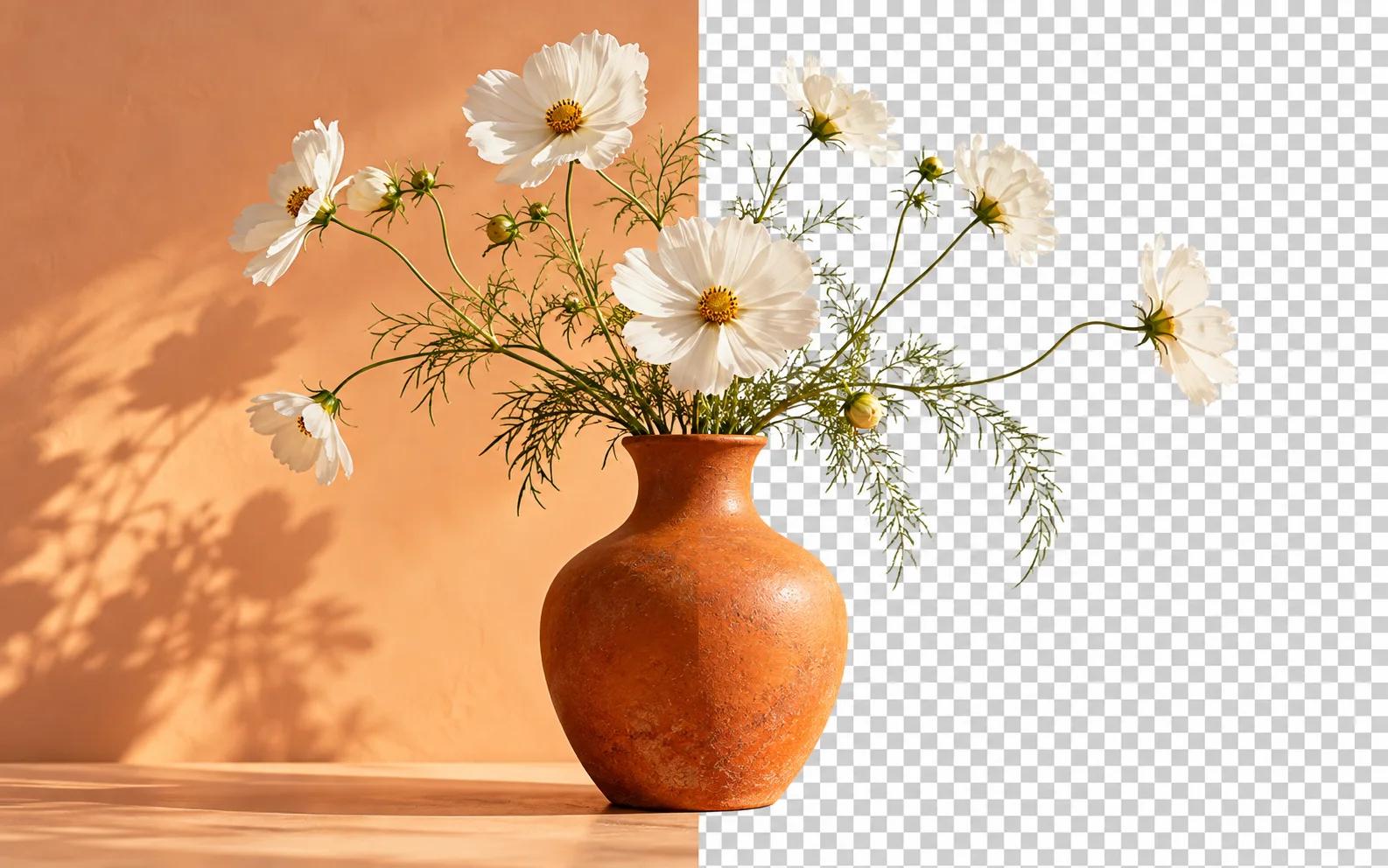
Most pages that promise to remove background from image free want an upload first, then a sign-up, then a watermark on the download. This guide uses the background remover on this site, which runs entirely in your browser: the photo never leaves your device, there is no account and no watermark. Below are the three steps, three photos chosen to make a background eraser fail, and what to do with the transparent PNG you get.
Remove background from image free in three steps
- Open the tool and drop in a JPG, PNG or WebP: a portrait, a product shot, a pet, a logo.
- Click Remove background. The first time, the page downloads what it needs once, about 180 MB; after that it starts immediately. In our runs a photo took 7 to 9 seconds on a quiet laptop, and 13 to 23 seconds while the machine was busy with other things, which is what the screenshots in this post show.
- Drag the divider across the picture to compare the original and the cut-out, then download the transparent PNG. It is the original size, up to 4096 px on the long side.
Hair, fur and glass: three photos that test a background eraser
A background eraser is judged at the edges. Flat objects on plain walls are easy; the three photos below are the cases where free tools usually leave halos or chew away detail.
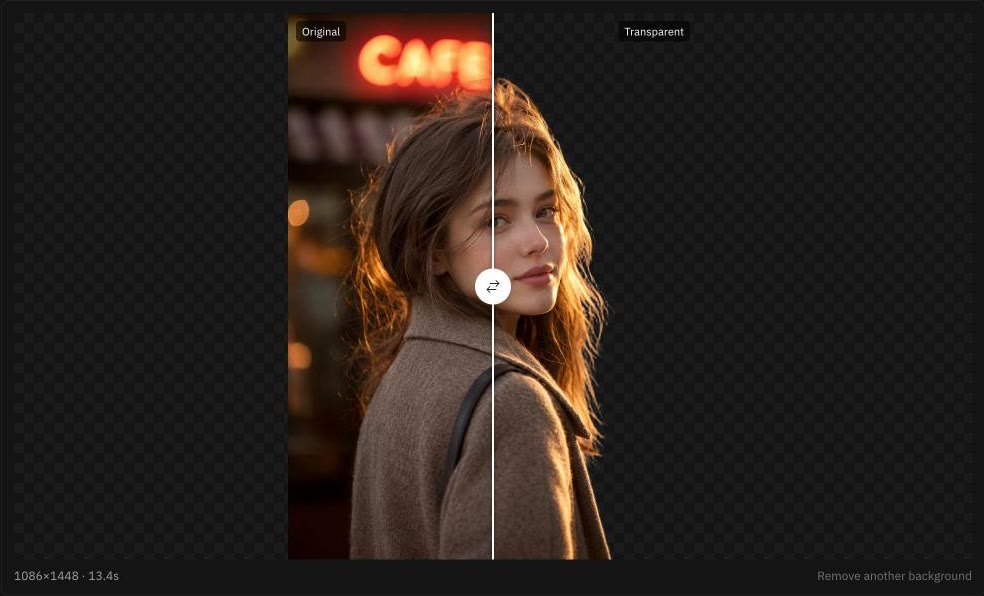
Hair against a lit background. Loose strands over a glowing café sign, with the same warm colour in the hair and the lights behind it. The cut-out keeps the individual strands rather than a smooth outline around the head.
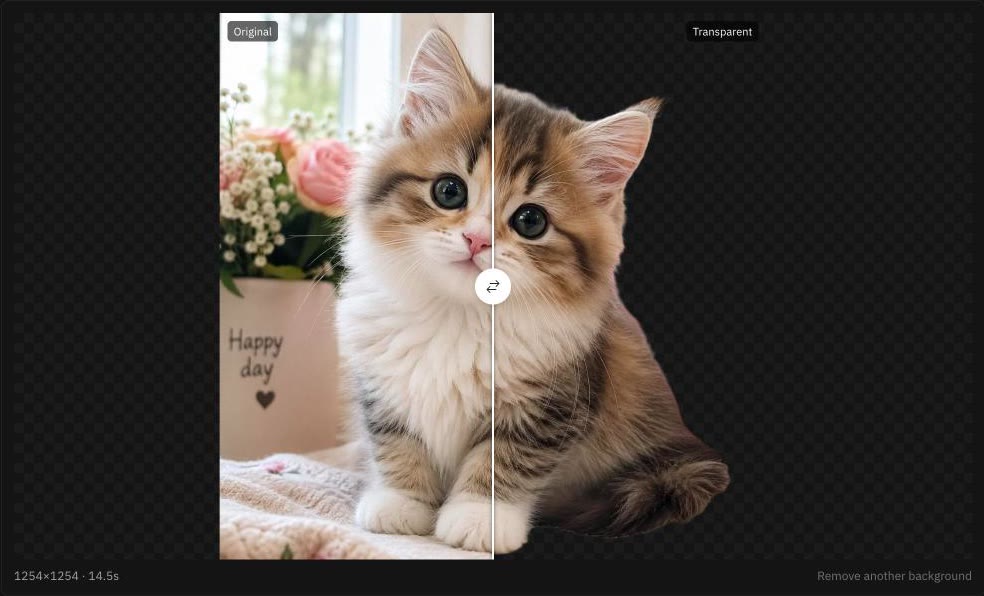
Fur against flowers and fabric. A kitten in front of roses and a blanket, with whiskers and fluffy edges that have no hard line anywhere. Whiskers survive, and the soft edge of the fur stays soft instead of being cut straight.
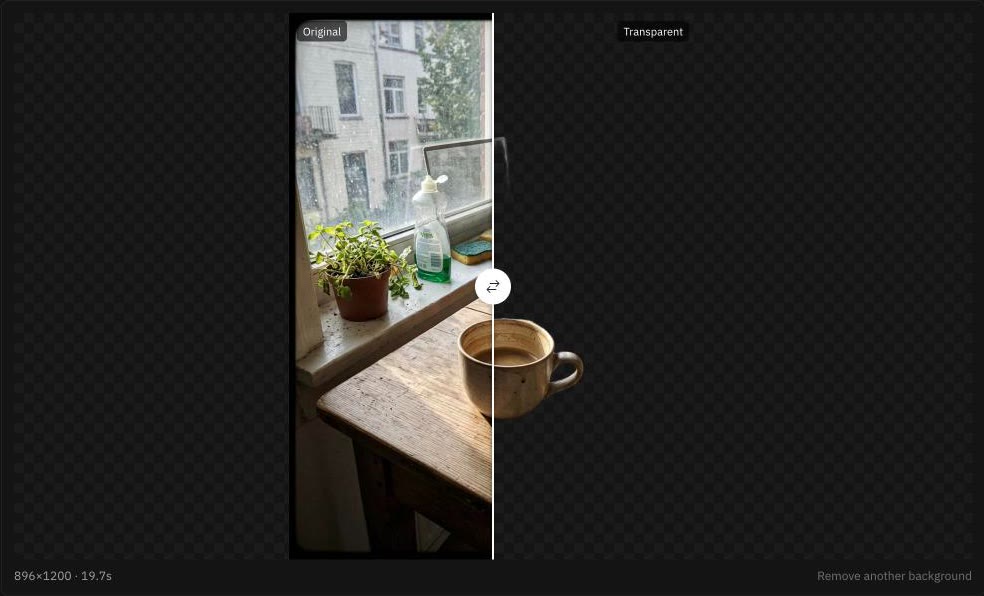
A cup on a cluttered table with glass behind it. A coffee cup on a window sill, with a plant, a bottle and a street outside the glass. The tool picks the cup as the subject, including the handle's inner opening, and drops the whole scene around it.
Transparent background PNG: what you get and where it goes
The download is a PNG with a transparent background at the photo's own resolution, so nothing is lost for print or a large banner. From the result card, the Continue with… menu passes it straight into the other tools: resize it for a listing, add text for a thumbnail, drop it onto a photo collage, or compress it before putting it on a web page. PNGs are bigger than JPGs, so for the web that last step is worth doing.
To remove a white background from a logo or a scanned drawing, the steps are the same: upload the logo, run it, download the PNG. The result is a transparent background you can place on any colour.
Why nothing is uploaded, and why it is free
The removal happens on your device, in the browser tab. That is why there is no upload, no queue and no account: there is no server doing the work, so there is nothing to meter. The one-time download at the start is the only cost in time, and it is kept for later visits. Phones work too, on recent iPhones and Android devices; for the finest hair detail, a desktop browser gives the best result.
Not yet: GIFs
The tool takes still images. For a GIF with a transparent background, cut out each frame here, then assemble the frames in the GIF Maker. And if you want the cut-out to move, the Animate button on the result card sends it to the AI GIF Generator, where the first clip is free to preview.
- Background eraser
- Transparent background
- Remove background
- Free image tools
Put your next idea into a picture.
Open the image generator with your own prompt, or choose an example to start exploring.
Open image generator